
MatBox Material Implementation in Unreal Engine
In this tutorial, we’ll explore how to use MatBox’s ready-made materials in Unreal Engine. MatBox is a professional material pack that lets you enhance your projects faster and with higher quality, eliminating the need to create materials from scratch.
Try MatBox for free. (Download MatBox: 15 MB)
Key Features of MatBox Materials:
✅ Scale Adjustment – Control texture size proportionally or independently.
✅ Color Correction – Modify hue, saturation, brightness, and contrast.
✅ Surface Refinement – Adjust roughness, specular, and normal maps for realistic detail.
✅ Tile & Dirt Effects – Add realistic wear, grime, and tiling with a single click.
This guide includes text, images, and video instructions to help you import, customize, and optimize MatBox materials in Unreal Engine—boosting both workflow speed and creative control.

Unreal Engine Material Instance Controls
Global Scale
Adjust Material size and rotation for perfect alignment.
- UV_Scale:
- Values < 1 = Smaller texture.
- Values > 1 = Larger texture.
- Custom_Scale:
- Enables UV_Scale_U & UV_Scale_V for non-uniform scaling.
- Rotate: (0°–360°) Rotates the material.
- Move_U / Move_V: Shifts the texture along U/V axes.

Albedo (Color Correction)
Fine-tune color properties for realism.
- Albedo Tint: Changes the base color.
- Albedo Controls:
- Saturation (0–5): Increases/decreases color intensity.
- Brightness: Controls lightness (0 = dark, >1 = brighter).
- Contrast: Adjusts tonal range (>1 = darker, <1 = lighter).

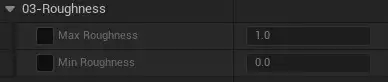
Roughness
Determines surface shininess (0 = glossy, 1 = matte).
- Max Roughness: Default = 1 (matte). Lower for gloss.
- Min Roughness: Default = 0 (glossy). Increase for matte.
Specular
Controls light reflection intensity (not sharpness).
- Base Specular: Default = 0.5.
- Closer to 0 = Weaker reflections.
- Closer to 1 = Stronger reflections.

Normal Map
Adds fake 3D depth without extra polygons. Instead of physically altering the model’s geometry, it simply changes how light interacts with the surface. This technique adds realistic depth to materials like wood, stone, fabric, or skin—without compromising game optimization.
- Normal Strength: Default = 1.
- <1 = Flatter surface.
- >1 = Exaggerated depth.

Exclusive MatBox Features
Tile for Stone & Wood
Easily add custom tiling effects to materials.

- Tile: Enable to access tiling settings.
- Tile_Only_H: Single-direction tiling.

- Tile_2mm/4mm/6mm: Adjust grout thickness.

- Tile_Custom: Import your own textures.
- Normal Strength Tile: Controls grout depth.
- Roughness Tile: Adjusts grout roughness.
- Color Tile: Change grout color.
Dirt & Wear Effects
Make surfaces realistic with grime, dust, and stains.
In the real world, no surface is perfectly clean! Dust, stains, scratches, and wear naturally affect all materials. Adding dirt layers makes your textures look more organic and lifelike. Pristine materials often appear flat and artificial. But when you introduce imperfections like grime or water spots, surfaces gain depth and variation – dramatically improving visual appeal. For games and films, overly clean surfaces scream ‘digital fake.’ Strategic dirt layers bridge the gap between CGI and reality, selling the illusion of authentic materials.


- Dirty: Activates dirt effect parameters.
- Dirt 01-05: 5 customizable dirt patterns (enable one at a time)
- Dirt Custom: Import your own dirt textures Or download from:
MatBox > Texture > Dirt - Color Dirt: Adjust dirt coloration
- IN_dirt: Dirt Intensity. (Default: 0.5, 0 = Maximum visibility, 1 = Faintest appearance)
- Scale-dirty: Higher values = Larger dirt particles, Lower values = Finer details.
- Rotate-dirty: 0°-360° control
- Move_U-dirty: Horizontal (U-axis) offset
- Move_V-dirty: Vertical (V-axis) offset
- Roughness Dirty: when enabled: 0 = Glossy dirty areas, 1 = Matte dirty areas

This guide has shown how MatBox transforms Unreal Engine workflows by providing ready-to-use, customizable materials. From precise scaling and color correction to realistic dirt/tile effects, MatBox empowers artists to skip tedious material creation and achieve professional results faster. Try these optimized material solutions today to enhance your Unreal Engine projects while saving valuable development time.
(Download MatBox Now: 20 MB)
