







Introducing the Snake Plant (Sansevieria) for Unreal Engine
The Snake Plant (Sansevieria) is a staple in contemporary interior design, prized for its distinct upright, sword-shaped foliage and striking banded variegation. This high-quality 3D asset provides a clean, professional-grade representation of the species, complete with a minimalist white pot and a dark wooden mid-century style base. Whether you are populating a corporate office atrium or staging a high-end residential apartment, this Snake Plant 3D model brings life and architectural structure to your digital environments without the maintenance of real vegetation.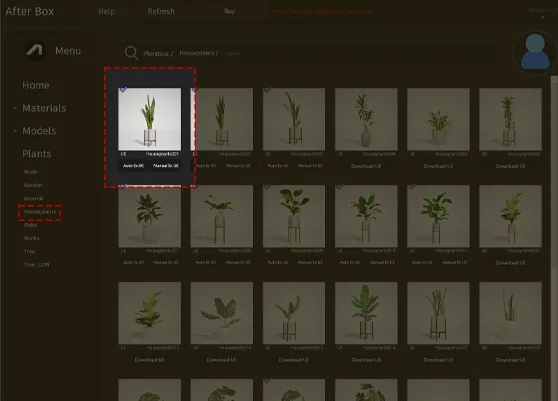
Versatile Application Across Project Types
This asset is purpose-built for flexibility. Its compact, upright form makes it an ideal candidate for interior staging, such as placing it alongside a fiddle leaf fig to create a layered look in a living room scene. For architectural visualizers, the clean silhouette works perfectly in modern entryways or as a desktop accent in corporate office renders. Game environment artists will find the asset particularly useful for dressing high-density living spaces, cyberpunk offices, or boutique hotel lobbies where the aesthetic demands a refined, modern touch.Design Cohesion and Spatial Pairing
The Snake Plant (Sansevieria) thrives in designs that emphasize clean lines and structured forms. It is a natural fit for contemporary, minimalist, and mid-century modern architecture. When building out your scene, pair this plant with materials like smooth, polished concrete or warm walnut wood finishes to enhance the overall atmosphere. While ideal for indoor settings like covered patios or bright atriums, it is less suitable for lush, overgrown cottage garden environments where its rigid, architectural character would feel out of place. We recommend considering the monstera as a complementary element if your space needs a softer, more expansive leaf shape to balance the sharp geometry of the Sansevieria.Rendering and Technical Performance
Built for efficiency, this asset features a modest 645-triangle count, making it lightweight for real-time applications. Because it is fully compatible with Unreal Engine 5 Nanite technology, you no longer need to rely on manually authored LODs to maintain performance. The geometry holds up remarkably well under close-up camera inspection, with the sharp leaf margins and clear color transitions between the deep and light greens providing high visual fidelity for your renders.
Practical Scattering and Placement
To avoid a repetitive look when filling larger areas, use this model with caution regarding rotation and scaling. Because of its distinct horizontal banding, placing multiple identical instances side-by-side can highlight the repetition. We recommend slightly varying the rotation of each instance and making minor adjustments to the overall scale to ensure that the unique variegation patterns appear organic within your scene.Seamless Unreal Engine Implementation
This plant asset is designed as a drop-in component for your current project. By eliminating the need for complex material setup or manual optimization, it allows you to focus on the broader composition of your environment. Being a game-ready foliage model, it fits directly into your level design workflow, ensuring that your background assets look high-end without impacting the overall project budget.Workflow Integration
You can drag this model directly into your Unreal Engine 5 project viewport for instant staging. The asset is pre-optimized to help you populate interiors quickly, saving you valuable hours that would otherwise be spent on vegetation modeling and shading. For artists looking to expand their library further, you can explore subscription options at https://after-box.com/pricing/ to access our full collection.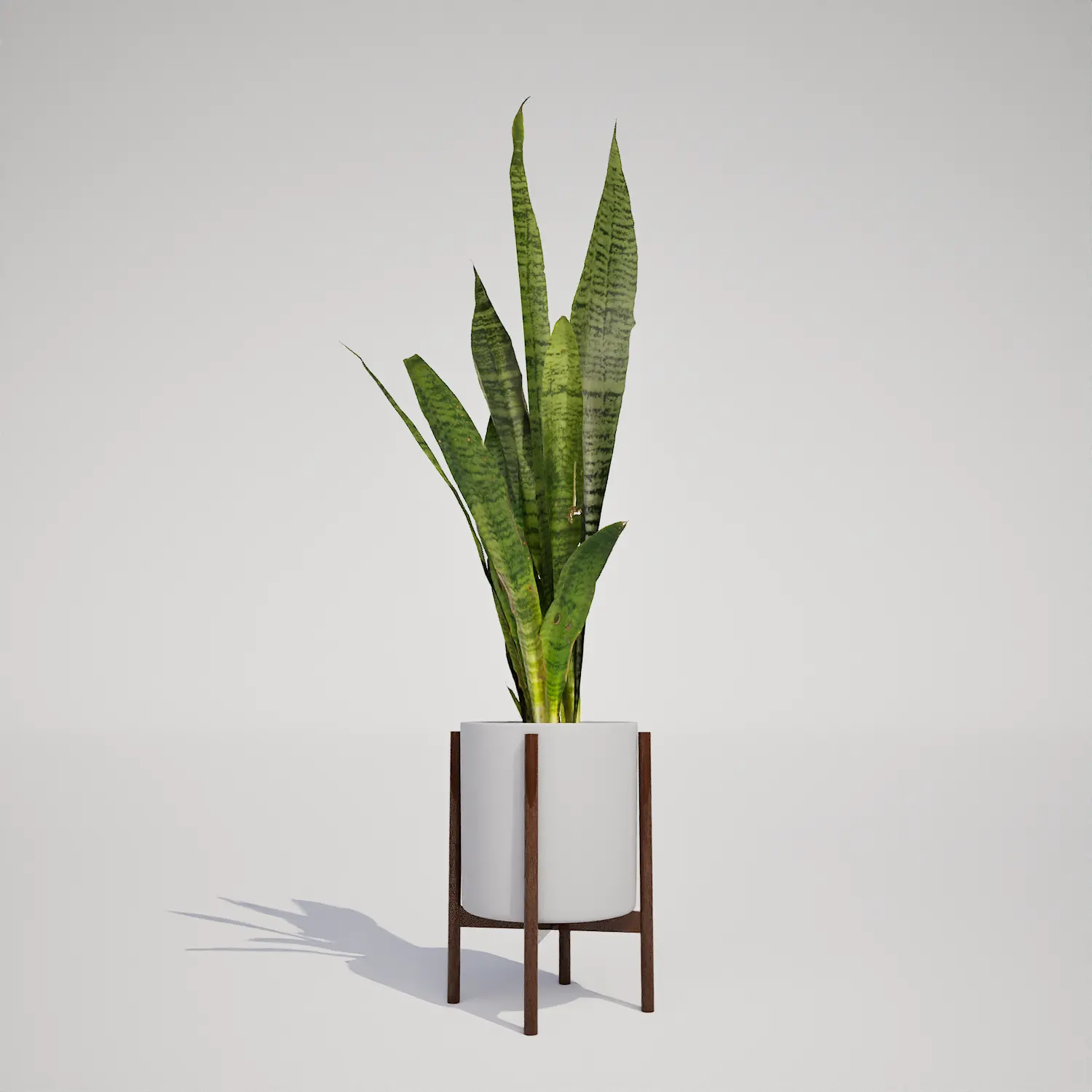

Save time importing objects
Download this object and hundreds of others from Afterbox software right now and import it into your Unreal Engine project with one click.
